Top 15 Tips to Improve Business Central Performance
In this modern busy and competitive world, we heavily depend on software and computer systems to do small tasks and complex jobs. Systems are automated thanks to the boom in AI technology and quite often they are interconnected and the smooth, seamless function of them is vital to give a better customer/user experience. Speedy response of the system is crucial for it. This fact is pretty much true for ERP and Ecommerce systems like Dynamics NAV and Business Central. After tuning such systems for more than 25 years, taking POS system which runs Dynamics NAV/Business Central system as an example, what we found out is the last thing the customer will tolerate is a slow responding POS system and its crashing with blocking or deadlock errors. It will give a wrong image of the company and will lead to the loss of sales and reputation. The truth is such problems can be avoided quite easily for the cost of a cup of tea!. Let's see how.
There are many tips, tricks, myths, bad advices as well as good advices out there. Many of these misinformed myths are mainly from the SQL community, as they do not consider how the NAV or Business Central drives the SQL platform and the load it puts onto it. These tips are specific for Dynamics NAV and Business Central systems running on SQL Server and hence will not only give tips for it but also for Business Central/Dynamics NAV application developers for better performing systems. As experts in the Dynamics NAV/Business Central tuning we understand and have the experience dealing with complex interaction taking place between the Dynamics NAV/Business Central environment and the SQL environment. To avoid duplication from now wherever we mention “Dynamics NAV” the same advice and tips are applicable for Business Central including its implementation on SaaS.
1. Get your SIFT structure right
The word "SIFT" stands for Sum Index Field Technology. This is the Dynamics NAV way of creating its own cube to report high level totals such as Inventory, G/L Balance, Customer & Vendor Account balances and the secret behind the success of Dynamics NAV & Business Central systems. If there is a problem with the structure or lack of this structure, those calculations will take a lot of time and they will directly impact speed and performance. Identifying a speed problem to a SIFT in a complex system such as Dynamics NAV will be a challenge. You cannot randomly create these SIFT and expect things to work as there is a performance penalty to pay for having these SIFT structures as well. You will need a good software such as SQL Mantra Tools’ performance tuning tool for Dynamics NAV,which can identify the source of these issues with pinpoint accuracy in both On-prem and SaaS platforms.
2. Order... Order... Order...
We have seen Speakers of Parliament around the world use this word to bring order when proceedings start to get out of control. One might ask what this has to do with performance in Business Central. This “order” clause can cause havoc in Dynamics NAV or Business Central, especially with large or highly active tables. You can capture this issue using any decent SQL based tools. Quite often, DBAs use SQL Server’s built-in tools, such as the Tuning Advisor, to get suggestions for creating indexes directly on SQL tables, only to discover that it does not resolve the problem. Many people believe that to speed up a slow query, you only need to create an index to support the “WHERE” clause. This is a myth, particularly among those who do not fully understand how Dynamics NAV and SQL interact behind the scenes. As a result, many BC developers are misled into creating an index in the AL development environment. While they may be partially correct, this alone does not solve the issue. The reason is that C/SIDE (the API between Dynamics NAV/Business Central and SQL) adds an “ORDER BY” clause to the SQL command it issues in most cases. By default, this is the primary key of the table. This “ORDER BY chaos” occurs when you filter on one set of fields especially non primary key fields and sort by another set of fields. When this happens, SQL Server’s query optimizer will perform a table scan, even if you have an index that covers the filtering. Therefore, part one of the correct solution is to create an index that supports the filtering. The second part is to track down and modify the AL or C/AL code in Dynamics NAV or Business Central to change the “ORDER BY” clause. This is done by “instructing” the system to use the correct index through commands such as SetCurrentKey or properties like Sorting. This task can be quite daunting because code execution is often complex in a live environment where one function calls another, which then calls another, and so on. In reality, execution can even jump from one extension to another. Quite often guess work will not identify the source of the problem correctly.
You need to use a proper tool like Performance Insights, especially it’s slow query analysis, will take you to the source of the problem with pin point accuracy, saving you time, effort and money.
3. Handle Query Object properly
When the Query object was first introduced into the development environment of Dynamics NAV, the whole Dynamics community was over the moon, with enthusiasm, replacing some of the loops in the C/AL code with query. To their disappointment, the query implementation’s performance was much slower than the old loopy code. Many of us were very confused and could not believe it. We also used our special relationship with Microsoft to share this rather odd observation in many of our tuning projects. It just turned out that query objects are by design is not cached in the Dynamics NAV service tier. Due to the lack of cache support, these query objects performed poorly compared loopy C/AL code. We used our special relation to suggest Microsoft to cache it. So far it hasn’t been actioned and we are not sure if it ever will be. Until this, we need to be careful about the usage of the query object. You can make performance worse. In some situations, the usage of query object will improve performance. So, in summary it depends. If in doubt contact us through our web portal and our Performance Tuning Experts are more than happy to look into your specific scenario and will guide you accordingly.
4. Watch out for spanning index and SIFT
This is one of the most common post upgrade issues you might suffer especially after an upgrade from Dynamics NAV to Business Central. We have to deal with many of these issues nowadays, as most upgrade companies, consultants and developers who do these upgrade know little about performance and most importantly do not have any experience in improving performance in Business Central.
Let's look at the definition of spanning index or SIFT first. When you extend a table with your custom extension or a partner extension the new field is stored in a separate SQL table compared to the original parent table. If the process is such, you need to filter on fields from the parent table as well as the customised field, you could not define an index to support the filtering. Instead, the system will join both of these tables and will do a table scan to get the result. Same goes with SIFT, you cannot create a SIFT combining both of these fields, the system once again will do a table scan on both the SQL tables to do the calculation aggregating millions of rows, row at a time. The bigger the table, the bigger the problem.
Let us share a real life problem we have solved for a customer. The customer has a custom free inventory calculation, to cater for this they have extended Item Ledger Entry table with fields such as “Customs Status”, “Transit Location” and “Inventory Status”. They also created a flow field filtering on all the above custom field as well as standard fields like “Item No." and “Open”. To do the “Free Inventory” calculation faster, the system will not allow the creation of SIFT where the fields are from Microsoft Base Extension as well as from the custom extension. The “Free Inventory” flow field is added to Item page. This lead to a slow response when users open this page. Our software has detected this and has pinpointed the source of the problem. Highlighting the following SQL Code. As one can see both the parent Item Ledger Entry table (Item Ledger Entry$437dbf0e-84ff-417a-965d-ed2bb9650972) and it’s extension companion table (Item Ledger Entry$437dbf0e-84ff-417a-965d-ed2bb9650972$ext) is linked together and filters are applied. With no SIFT support, system need to loop through many millions of rows in Item Ledger Entry, aggregating the free inventory figure row by row.
  OUTER APPLY
  (
    SELECT TOP (1) SUM("Free Inventory$Item Ledger Entry"."Remaining Quantity") AS "Free Inventory$Item Ledger Entry$SUM$Remaining Quantity"
    FROM "SQLDATABASE".dbo."CURRENTCOMPANY$Item Ledger Entry$437dbf0e-84ff-417a-965d-ed2bb9650972"
      AS "Free Inventory$Item Ledger Entry" WITH(READUNCOMMITTED)
    JOIN "SQLDATABASE".dbo."CURRENTCOMPANY$Item Ledger Entry$437dbf0e-84ff-417a-965d-ed2bb9650972$ext"
      "Free Inventory$Item Ledger Entry_ext" WITH(READUNCOMMITTED)
    ON("Free Inventory$Item Ledger Entry"."Entry No_" = "Free Inventory$Item Ledger Entry_ext"."Entry No_")
    WHERE("Free Inventory$Item Ledger Entry"."Item No_" = "Item"."No_"
      AND "Free Inventory$Item Ledger Entry"."Open" = @3
      AND "Free Inventory$Item Ledger Entry_ext"."Customs Status$7a9c2e41-5f8b-4d93-a6e7-1c2f9b8d4e30" = @4
      AND "Free Inventory$Item Ledger Entry_ext"."Transit Location$7a9c2e41-5f8b-4d93-a6e7-1c2f9b8d4e30" = @5
      AND ("Free Inventory$Item Ledger Entry_ext"."Inventory Status$7a9c2e41-5f8b-4d93-a6e7-1c2f9b8d4e30" = @6
          OR "Free Inventory$Item Ledger Entry_ext"."Inventory Status$7a9c2e41-5f8b-4d93-a6e7-1c2f9b8d4e30" = @7))
  ) AS "SUB$Free Inventory"
Our Performance Insights product will detect these issues 24/7 and will pinpointing the source of such problems, extension and AL code involved, filters applied in both On-prem and SaaS environments. At SQL Mantra Tools™ we have used our 25+ years of performance tuning experience to come up with a unique solution to tune such performance issues in Business Central systems. Contact us through our web portal and one of our experienced performance tuning consultants will be happy to help you.
5. Make the transactions shorter
Business Central is an OLTP database. As a result, there will be many short SQL statements fired by the system. There are few ledger tables in the database and writing to these tables are serialised by design, i.e. one user can write to tables like Item Ledger Entry at a time as they will be explicitly locked. If multiple users try to post to these ledger tables, their posting request will be delayed and sessions will wait for table locks to be released. We call this blocking. To minimise blocking, it is essential to complete the transaction as quick as possible once these critical ledger tables are locked. We are seeing some of the partner extension and custom extensions do execute extra, slow tasks such as waiting for confirmation messages, exporting data, printing documents, calling external webservices while holding locks on many of the critical resource and ledger tables, making these transactions longer. Many of such issues can be traced back to poor choice of trigger and events to initiate these processes. This will lead to a lot of blocking in Business Central. It is not advised to “chain” such extra tasks with postings. With multiple extensions involved you need a tool which can report the complex interaction between code in these extensions to successfully pinpoint the cause of these issues. The only tool you need to log such complex performance problem in Business Central is performance insights.
6. Serialise your postings
In Business Central, we have many ledger tables. Posting to them by design is a single user process, i.e. one session can post to these tables at a time. This is to maintain audit trail and consistency of the records, for example a batch postings to G/L Entry table should ensure the sum of the debit and credit transactions balance and a batch should not have any postings from another. To minimise blocking with such process, it is advised to “off load” all the postings to automated job queues where possible. Here at SQL Mantra Tools, we have used these techniques to allow hundreds of pickers concurrently picking in a warehouse for many of our customers. If you have such challenges why not use our expertise by contacting us through our web portal.
7. Use Solid State Drives
In a typical OLTP database such as Dynamics NAV & Business Central system’s speed it directly propitiates to the speed of the drives the database is hosted. Hosting your ERP system in a fast solid state drive is a worthwhile investment. Memory of the SQL Server and Service Tier machines are also performance critical resources. In system health check service for Dynamics NAV and Business Central we look at hardware resources and its usages and will provide advice to improve performance for a fixed cost. Contact us through our web portal for more details.
8. Do not do any guess work
It is common for super users, Business Central application consultants as well as Dynamics NAV developers to guess the source of performance issues. They quite often forget these systems are quite complex and with multiple extensions in place, it is crucial to identify the source of the problem correct. The code execution has a tendency to jump from on extension to another to another in a production environment with multiple extensions in place. Even with a best application knowledge, guess work will be wrong most of the time. In a Business Central & Dynamics NAV system our performance logging tool will work like a CCTV camera recording all those performance incidents 24/7 and using it one can identify the source of the problem, the users involved, timings etc.. for a price of cup of coffee, a day.
9. Maintain the index properly
In a typical Dynamics NAV or Business Central database, 10% of the table and index will hold 90% of the data and moreover those 10% of the table and indexes will be very active going through a lot of OLTP work load such as insert, modify, delete and read operations performed by multiple sessions all at the same time, creating a unique challenge when it comes to optimise and maintain index for a Dynamics NAV or Business Central database. Vast majority of the index maintenance scripts and strategy available in the wider SQL community is not designed specifically for this hence they will not work properly for Dynamics NAV or Business Central database. SQL Mantra Tools’ award winning maintenance module which is specifically designed for the unique OLTP work load of Dynamics NAV or Business Central database, and will proactively maintain those system critical tables, views and its index before it becomes a major issue.
10. Do your MOT regularly
An ERP system such as Dynamics NAV or Business Central database, goes through changes all the time. It goes through system changes in the form of changes from Microsoft, Partner extensions, Customisations etc... further the data load also shifts the performance barometer. Putting all these together, you would need regular MOT check to ensure your ERP system is still in good shape for peak trade period such as Black Friday, Christmas, etc.. The last thing your organisation needs is a sales and revenue loss, simply because your ERP system could not cope with the peak demand. For a peace of mind, why not use our annual "System Health Check" service to ensure your system is ready to deal with those peak loads.
11. Consume all your data from SQL Server
Since the introduction of "Multiple Active Result Sets" (MARS) in Dynamics NAV and Business Central, the underlying application code (AL and C/AL), if not written correctly or optimally for data retrieval can lead to excessive ASYNC_NETWORK_IO wait on the SQL Server, clogging its precious memory. For example, application code starts off with asking SQL server to fetch a large set of data but only consuming a few rows and the rest of the rows never consumed by the application. This issue is quite often overlooked by database administrators and developers as they do not know what could have caused this. SQL Mantra Tools unique array of performance tools can pinpoint this to the offending application code in Dynamics NAV and Business Central so that this memory misuse can be rectified.
12. Don’t be a noisy neighbour
Some of you may remember some of your parties in your younger days and how they are disruptive to your neighbours and in some cases, you may be told off to keep the noise down and to be courteous to the neighbours. The same might happen when an untuned system is hosted in a shared platform such as Microsoft SaaS. It may drain some of the shared resource quite badly and deprive the resource to other tenants on the same host machine, hence affecting performance of other tenants as well. Due to this Microsoft has got very strict monitoring policy in place. If your Business Central SaaS tenant is deemed to be a noisy neighbour, the contributing extension will be uninstalled automatically, this can seriously affect an organisation’s operation. SQL Mantra Tools Performance insights product can detect weakness in any extension in a SaaS environment and can help your development team to resolve the issue, pin pointing the AL code, SQL Code and the Business Central users involved. Be proactive in monitoring the performance of your Business Central SaaS, before it’s too late.
13. Minimise your extensions
When someone customises Business Central by creating extension such as creating new fields to existing standard tables, in SQL, it creates a new table per extension and adds the field along with the primary key of the parent table. This architecture could lead to an explosion of SQL Tables, increase in database size and most importantly almost every single query which fetches the data in the Business Central application will join all these tables, contributing to a lot of overhands. Thankfully, this design flaw was addressed by Microsoft in BC23. But it still creates and consolidates all the new fields from all the extensions into a new “companion table”. Still is not a good idea to use the “design” feature of the Business Central application GUI as each for this design will lead to a separate extension and this will lead to a clutter of extensions and will lead to code management and dependency issues. It is advised to consolidate all such changes into a “Customisation Extension”, developed using standard extension development tools such as VSCode.
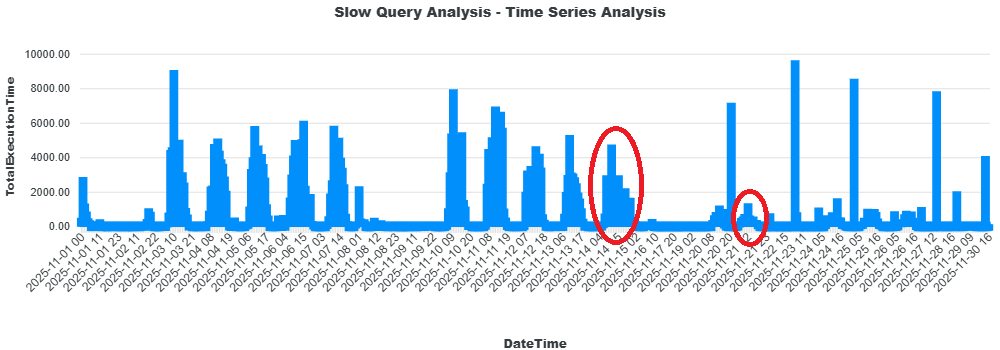
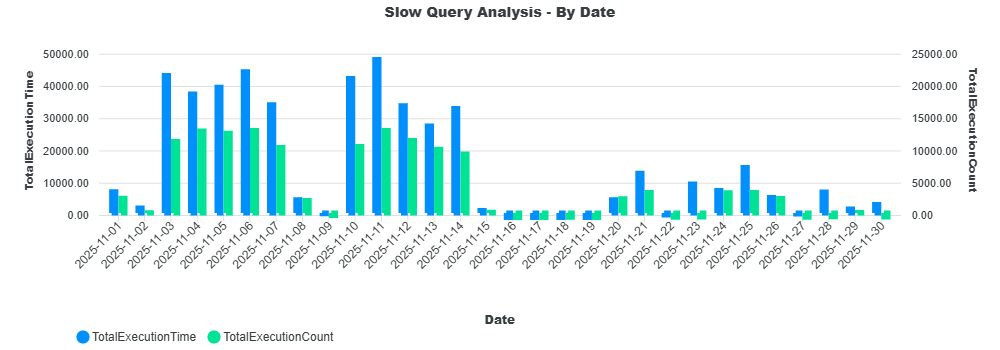
Here at SQL Mantra Tools, we have performed some benchmarking to measure the performance benefits achieved by consolidating all extension tables into a single companion SQL table. Please see the results from our Performance Insights product for a customer who has upgraded from BC21 to BC25 below. Even though the daily slow query pattern hasn’t changed, the scale of the pattern has reduced quite considerably. This is clearly captured by our software’s time-series analysis. You can also clearly see the reduction in slow queries after the upgrade in the slow query analysis by date. In fact, from the download of Performance Insights product, we can derive that the speed of the system has increased by a factor of 5.4. This is a typical figure, which may vary slightly depending on the number of extensions for other sites.
14. Don't perform a wild goose search in a Business Central Page
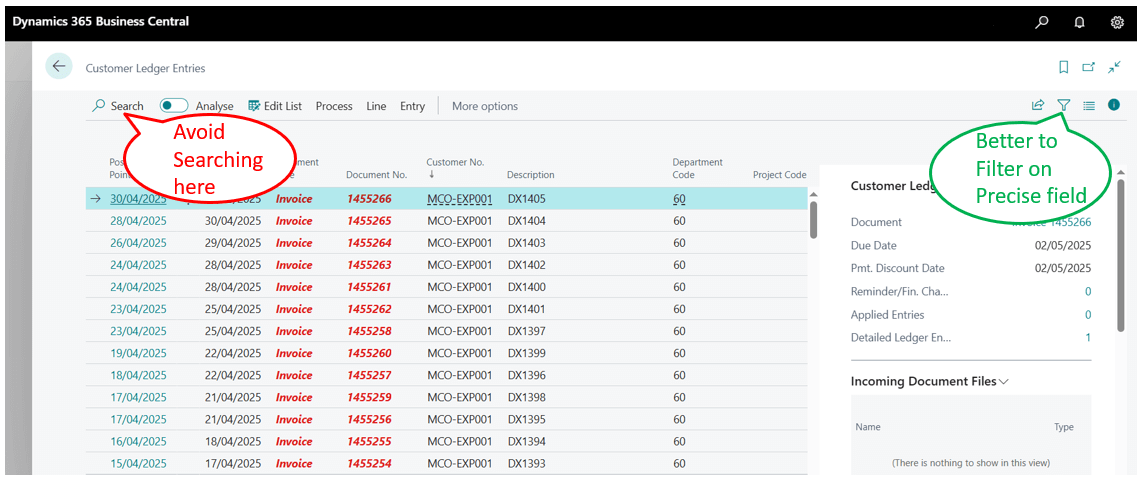
When searching records in a list page users need to be careful how they search the records. When they use the 'Search' box (see highlighted in red below), the system will search in all the columns leading to slow and poor performance. Instead, it is advised to use the "Filter" button (see highlighted in green) to select the exact column to perform bit more targeted search as this method tends to be faster as it may use underlying index for searching. The bigger the table, the bigger the performance (speed) issues with pages. Definitely avoid doing a "wild goose search" on large ledger tables as these searches will drain server resources for other processes and other users and will be affected by the degradation of overall performance of your Business Central system.
15. Construct your dataitems carefully in Business Central Report
Developers need to be very careful when designing reports and xml ports to properly link and establish the correct hierarchy of dataitems (tables). Incorrect hierarchy, filtering and linking of dataitem can lead to significant amount of data being retrieved from the database backend which will consume significant server resources and slowness in the Business Central System. SQL Mantra Tools performance logging and analysis software can log and pinpoint such issues. Further, use labels to define column names to your report as they do not form part of the dataset such as defining “IncludeCaption = true” while defining the column in dataset, as the field caption will be a parameter for the record set, rather than part of the record set. This will significantly reduce the size of the dataset middle tier need to render and process. Making the report to run faster. As part of system health check service, we can detect such issues and can remedy it as part of our performance tuning services and many more. Simply contact us and will take care of the rest.